Troubleshoot WiFi problems
If your lamp’s connection to the WiFi isn’t working, there’s almost always a simple reason. On this page you’ll find a checklist for the most common problems and detailed solutions for each of them.
Tip: If you arrived here from the VREEDA Lighting App, the browser will automatically jump to the right section for your specific problem.
General troubleshooting
Start by going through the following checklist. In most cases the problem can be found here:
- Is the WiFi on your smartphone turned on? → see Turn on WiFi on your smartphone
- Is your lamp blinking in pairing mode? → see Put the lamp into pairing mode
- Are you close enough to the lamp? Ideally less than 1 metre away.
- Have you granted location and network access? → see Why is location access requested?
- Does the app have local network access? (iOS only) → see Allow local network access (iOS)
- Is your home WiFi shown in the list? → see Select your home WiFi
- Do other devices have access to your WiFi? If not, the problem might be with your WiFi network itself.
If the checklist doesn’t help
Have you gone through all the points above and it still doesn’t work? Then take a look at the following points – these are things we’ve seen with many customers:
- WiFi signal too weak at the lamp’s location? Try temporarily moving the lamp closer to your WiFi router. If pairing works there, a WiFi repeater between the router and the lamp is a good long-term solution.
- Lamp inside a fitting with a metal shade? A metal housing blocks the WiFi signal so strongly that a connection is barely possible. Try pairing the lamp outside the fitting.
- Smartphone WiFi “stuck”? Especially with iPhones, we’ve occasionally seen WiFi work perfectly again after being turned off and back on. A full restart of the smartphone can also help.
- WiFi name hidden (SSID broadcast off)? Check in your router whether the network name is visible. Otherwise you’ll need to enter the name manually in the VREEDA Lighting App.
- Only a 5 GHz network active? VREEDA lamps technically only connect to 2.4 GHz networks. If necessary, also enable the 2.4 GHz band in your router (see your router’s manual).
- WPA3 encryption active? WPA3 is not yet supported by many smart home devices. Also enable an older encryption method such as WPA2 in your router in parallel.
- MAC filter active? If your router blocks new devices, you’ll need to temporarily allow the lamp in the router.
Put the lamp into pairing mode
For your lamp to be found, it must be in pairing mode – it will then blink slowly. The most common problem here is switching too quickly or too slowly.
How to do it correctly
Switch the lamp at the power switch (or plug) three times “Off” and back “On”. On the third switch-on, leave it on. The switching should happen at roughly a 1-second pace – not too fast:
21 - 22 - 23 - 24 - 25 - 26
OFF - ON - OFF - ON - OFF - ON
When switching on, the lamp should clearly light up for a moment before you switch it off again, and when switching off it should also be properly dark for a brief moment.
If it doesn’t work
- Try going a little slower rather than faster. In our experience, most customers switch too frantically.
- Use the power switch, not the remote control. An infrared remote control doesn’t switch the power itself, only the light command – and therefore doesn’t trigger pairing mode.
- Wait briefly between attempts. If the first attempt doesn’t work, leave the lamp completely off for about 10 seconds before trying again.
Turn on WiFi on your smartphone
For the VREEDA Lighting App to be able to pair your lamp, the WiFi on your smartphone must be turned on. There are two ways to do this:
Option 1: Quick access
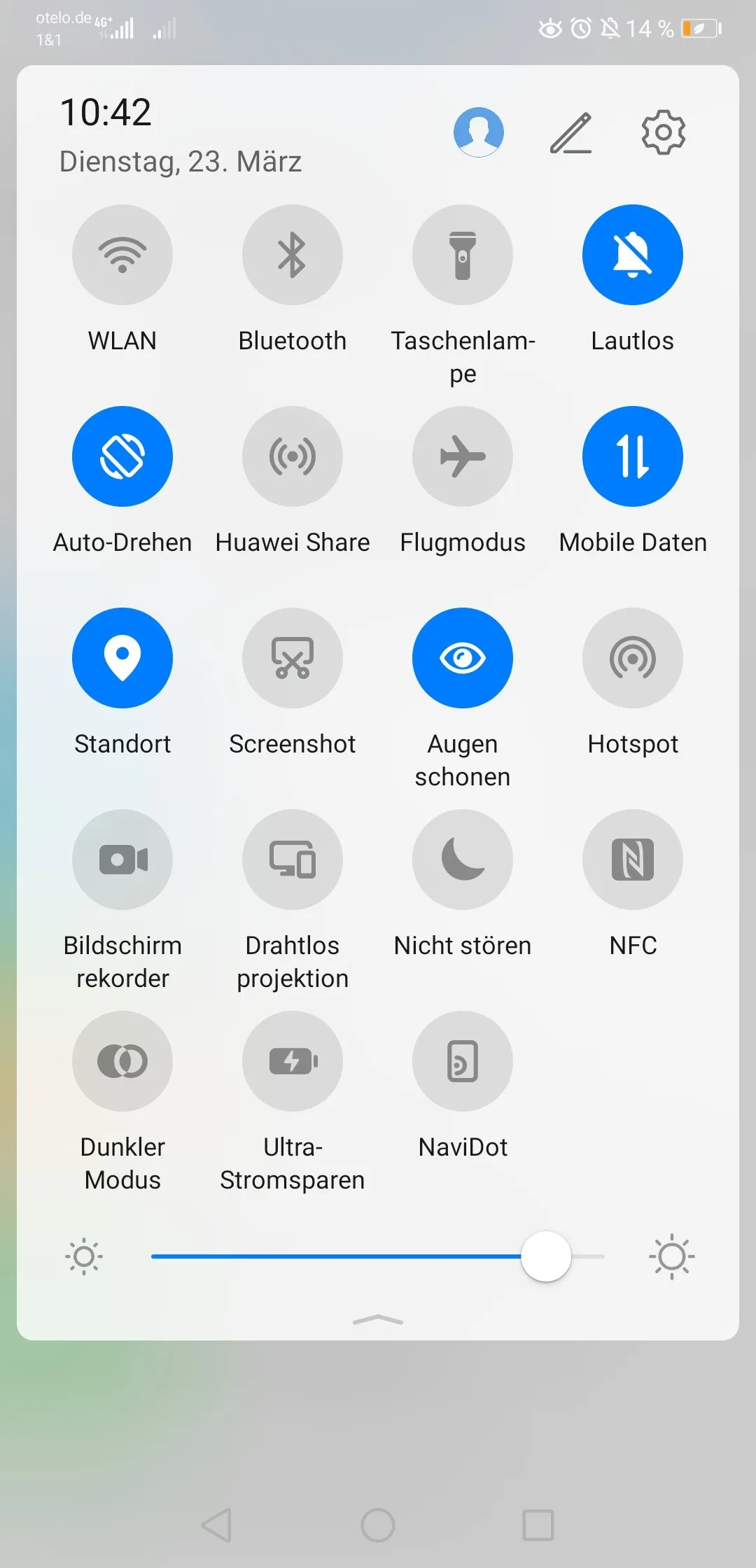
Swipe down from the top of the screen to open the quick settings panel on your smartphone. Tap the WiFi symbol there to turn it on.
Option 2: Via settings
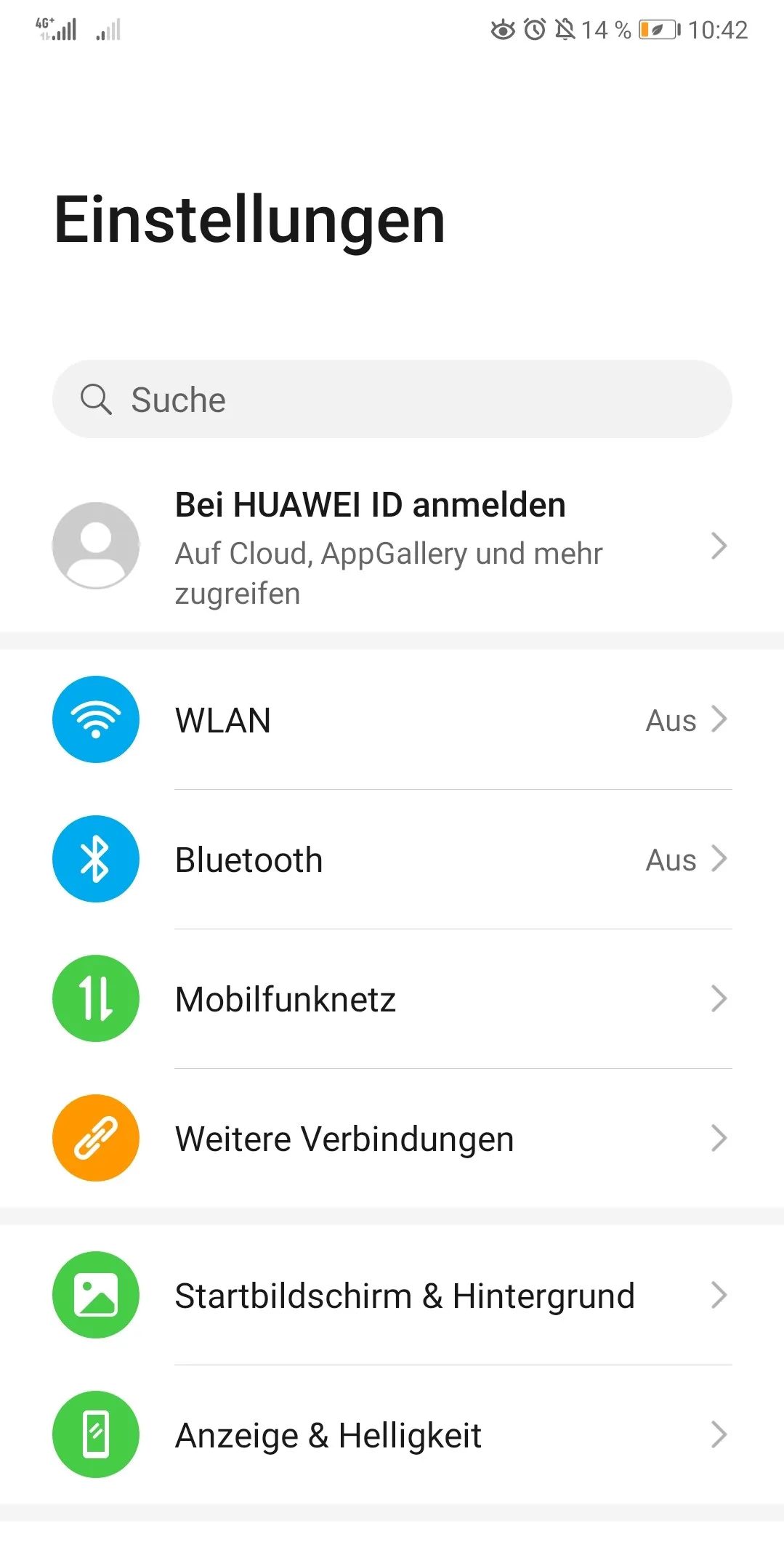
Open your smartphone’s Settings and select WiFi.
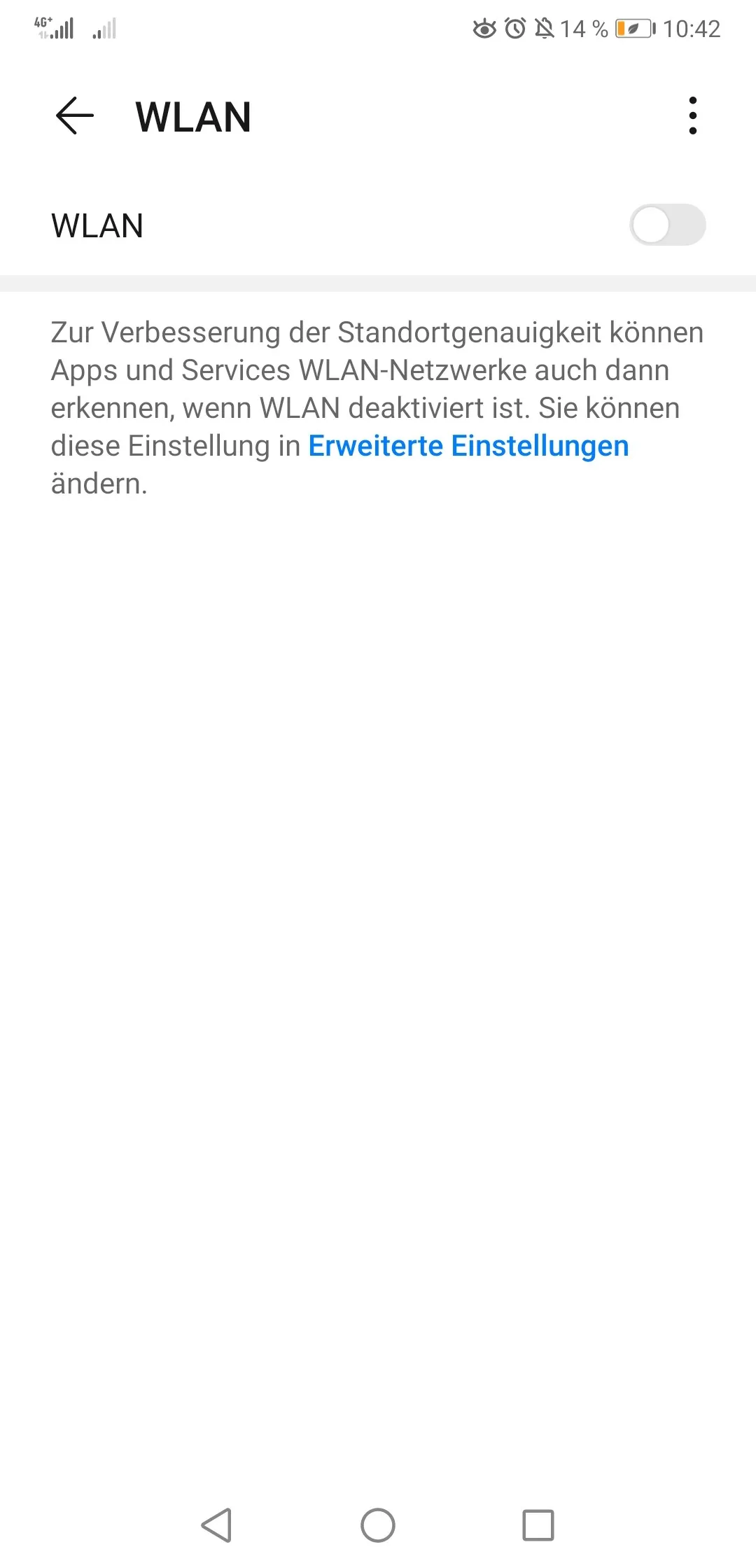
Enable the switch next to WiFi.
Select your home WiFi
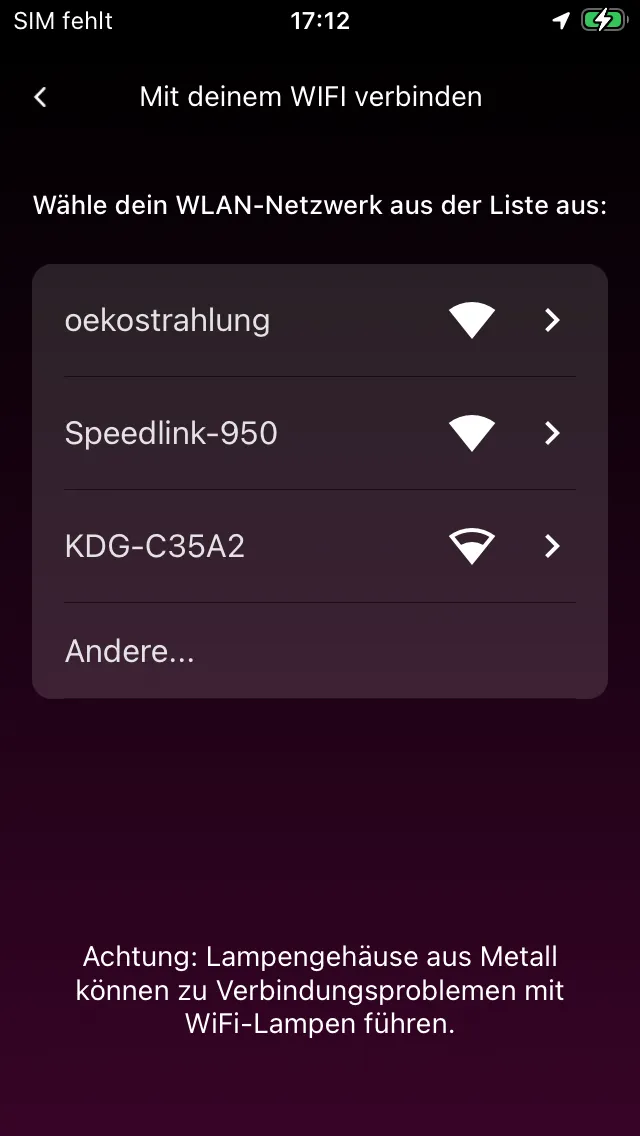
You need your home WiFi so that your lamp can be connected to the internet. Normally the VREEDA Lighting App will automatically detect your WiFi and show it in the list – you just need to select it there.
My WiFi is not shown
In residential environments with many WiFi networks, it can happen that your network doesn’t appear automatically in the list. You can then add it manually:
- Tap the ”+” or Add WiFi manually in the list.
- Enter the network name (SSID) of your WiFi.
- Enter the WiFi password.
- Tap Connect.
Important: Pay attention to the correct spelling of the network name and password. Both are case-sensitive.
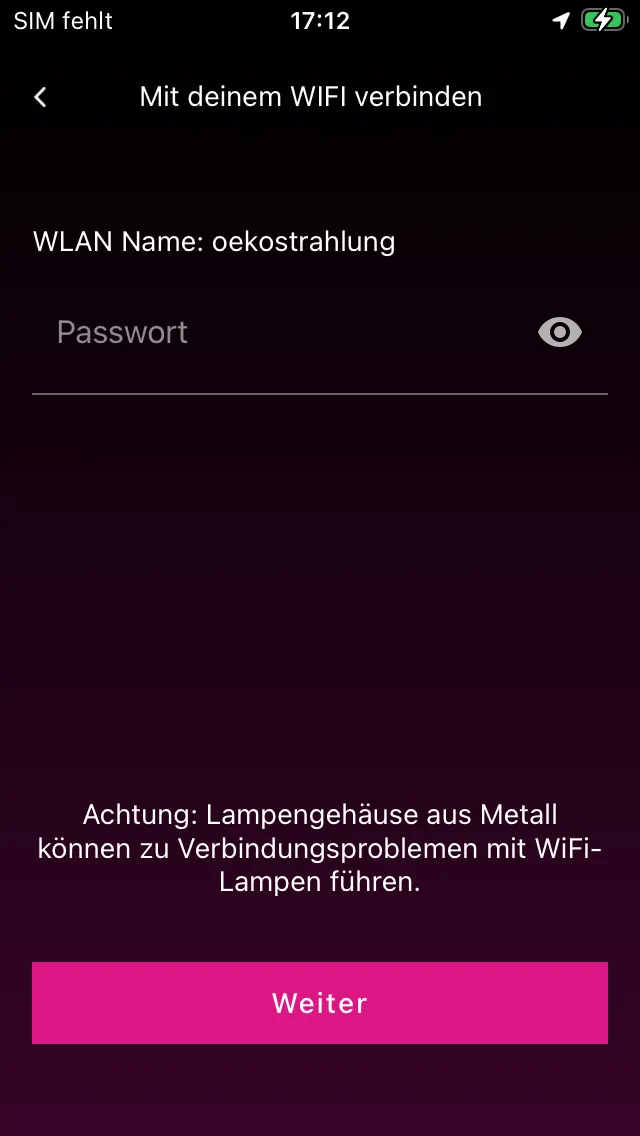
If connecting still doesn’t work, take another look at the General troubleshooting section – it’s often caused by the 5 GHz network, WPA3, or a MAC filter in the router.
Why is location access requested?
The VREEDA Lighting App asks your smartphone for location access – but why exactly?
In short: Without location access, the app cannot query your WiFi name, and without the name your lamp cannot be connected to the WiFi.
The slightly longer explanation
Both Android and iOS store known WiFi networks together with location data. A smartphone therefore automatically knows which WiFi to connect to at a particular location. For apps like the VREEDA Lighting App to access this WiFi information, both operating systems require location access as a prerequisite – a purely security-related measure by the manufacturers.
Conversely, your smartphone also uses known WiFi networks to determine your position faster and more energy-efficiently than power-hungry GPS could.
What happens with my location?
The VREEDA Lighting App does not store your location. It uses the permission solely to be allowed to query the WiFi name. Details can be found in our Privacy Policy.
I declined the permission – what now?
No problem. You can grant location access at any time afterwards:
- iOS: Settings → Privacy & Security → Location Services → VREEDA → While Using the App
- Android: Settings → Apps → VREEDA → Permissions → Location → Allow only while using the app
Allow local network access (iOS)
On iOS the VREEDA Lighting App asks for the Local Network permission during pairing. The app needs this permission to talk directly to your lamp once you’re connected to its temporary WiFi (lola-smart-…).
Why does the app need this permission?
During pairing, your iPhone briefly connects directly to the lamp – which broadcasts its own WiFi for that purpose. Since iOS 14, Apple requires apps to explicitly ask for permission before accessing devices on the local network. Without this permission, the app cannot send configuration to the lamp and pairing fails.
I declined the permission – what now?
You can grant the permission at any time afterwards:
- iOS: Settings → Privacy & Security → Local Network → VREEDA → On
Once the permission is active, the Go to settings button in the error dialog brings you back into the pairing flow automatically.
The entry “VREEDA” is missing from the list
If VREEDA isn’t listed there, iOS has never asked for the permission. Start a new pairing attempt – the dialog will appear automatically at the first step. Tap Allow.
Still have questions?
We're happy to help — create a support ticket or send us an email.